MP4 · 03:22
A complete-song visual poem that moves from moonlit grassland and animal silhouettes toward a warmer horizon.
View caseMusic to motion
Turn any song into an editable AI music video. Plan every scene, generate keyframes and clips, add lyrics, and export a 1080p MP4.
From audio to an editable storyboard
Music2Video separates creative planning from image, video, and final composition so every scene stays editable.
Upload audio or use a direct file URL, then trim the exact section you want.
Choose a format, references, visual style, aspect ratio, and generation models.
Edit timing, lyrics, keyframe prompts, motion prompts, and scene order.
Combine the scenes, keep your original track, add lyrics when needed, and export MP4.
For independent musicians and release teams with a finished song: use Performance MV for a singer, Cinematic MV for a visual story, or Lyrics Video for supplied, timed words. Upload MP3, WAV, M4A, AAC or OGG up to 100 MB, then trim the section you need.
Review scene timing, lyrics, prompts and keyframes before generating motion. Choose Grok Imagine Video for non-lip-sync scenes, or a compatible Seedance model for lip sync. Check identity, mouth movement and neighboring shots yourself; generation does not guarantee continuity.
Start with one chorus. A 30-second test with three 10-second scenes, three Nano Banana keyframes and Grok video costs 163 credits including planning, before retries. Seedance 2.0 with GPT Image 2 costs 379 for the same example. Approve stills before spending credits on motion.
Product evidence
The Studio keeps the work visible: trim the song, review the timed storyboard, generate keyframes, then compose the final MP4. These screenshots use a controlled demo project with no account or customer data.
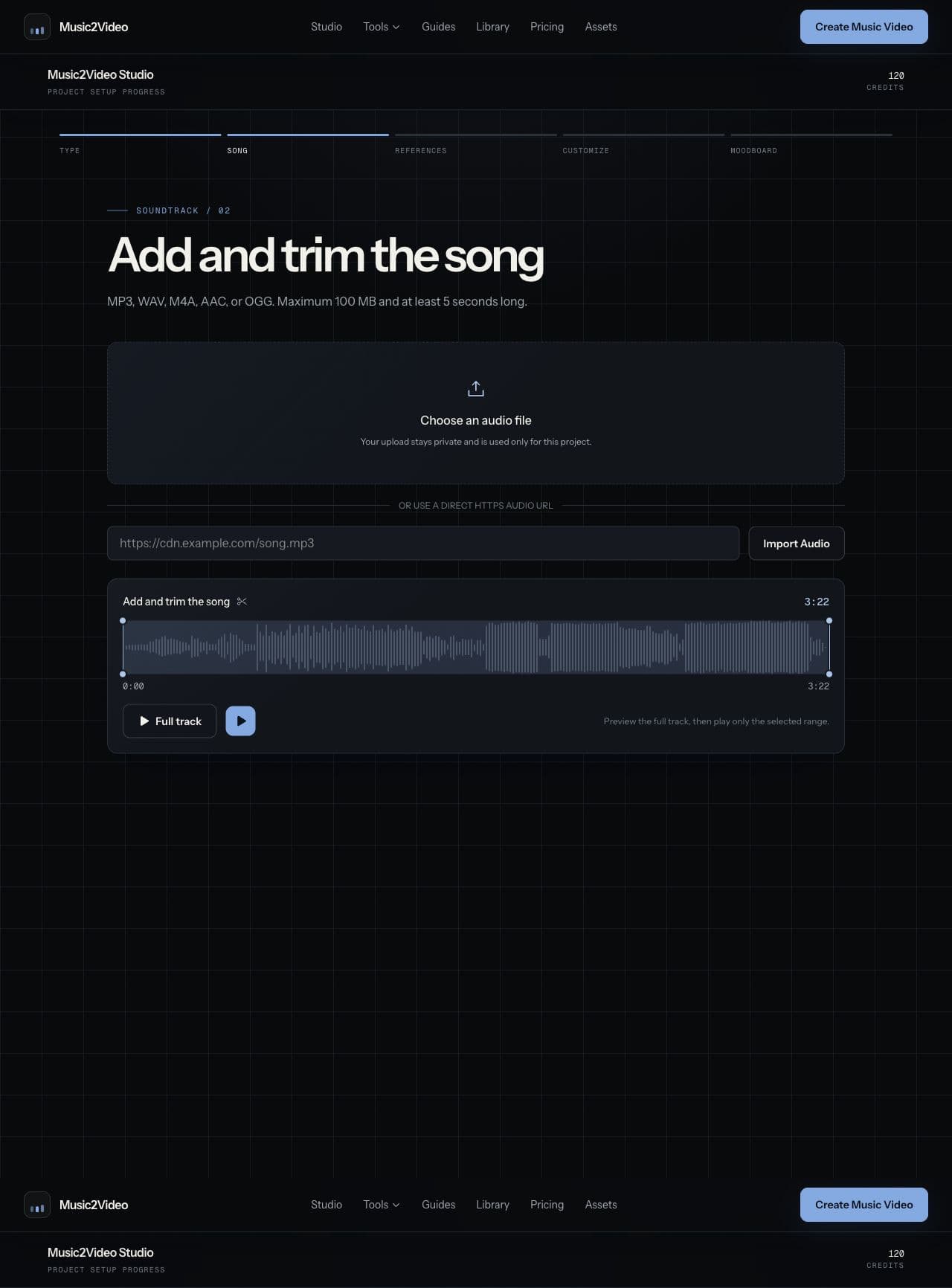
Upload and trim
Set the exact song range before visual planning.
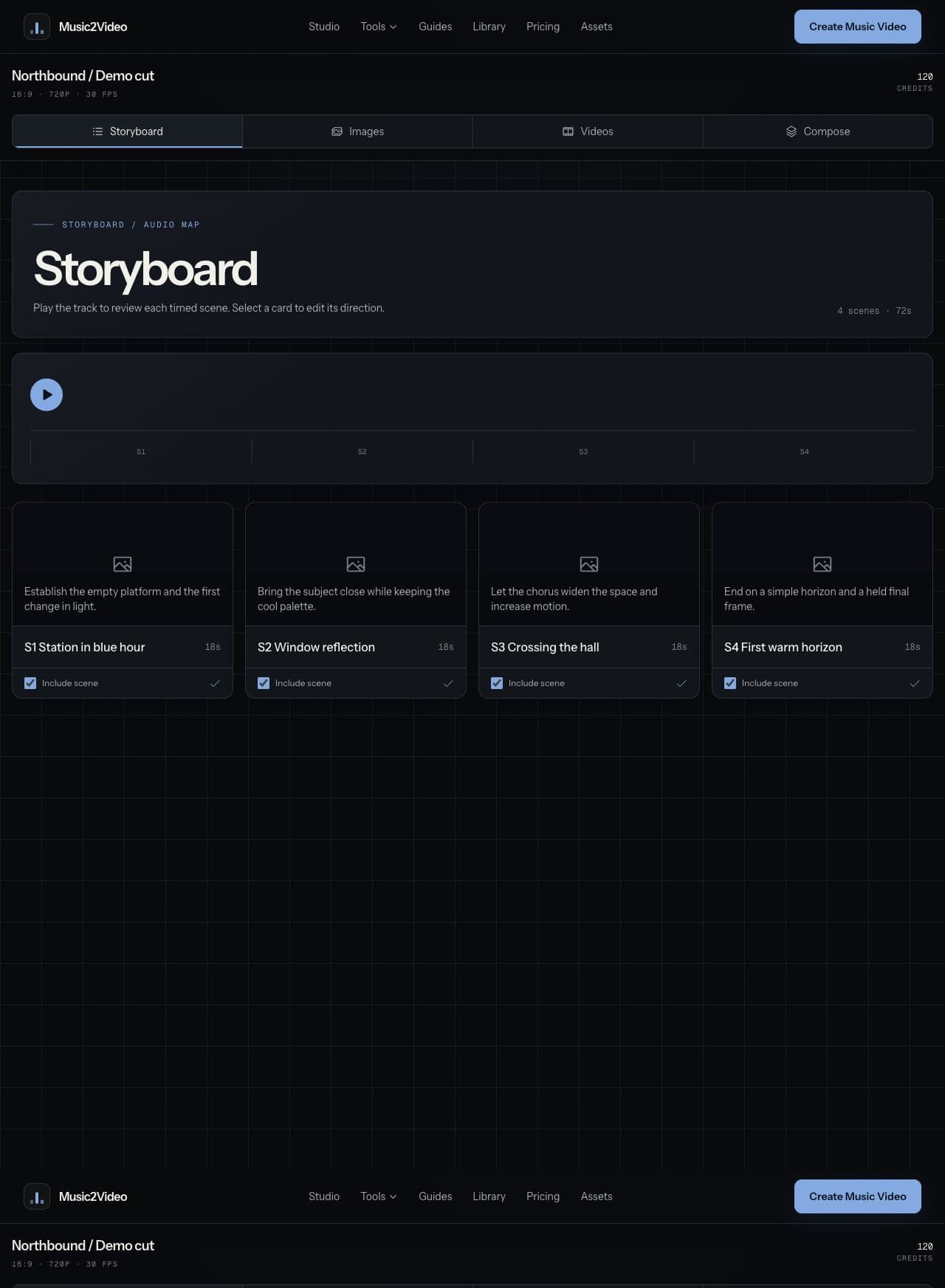
Review the storyboard
Check scene timing, direction, lyrics, and order.
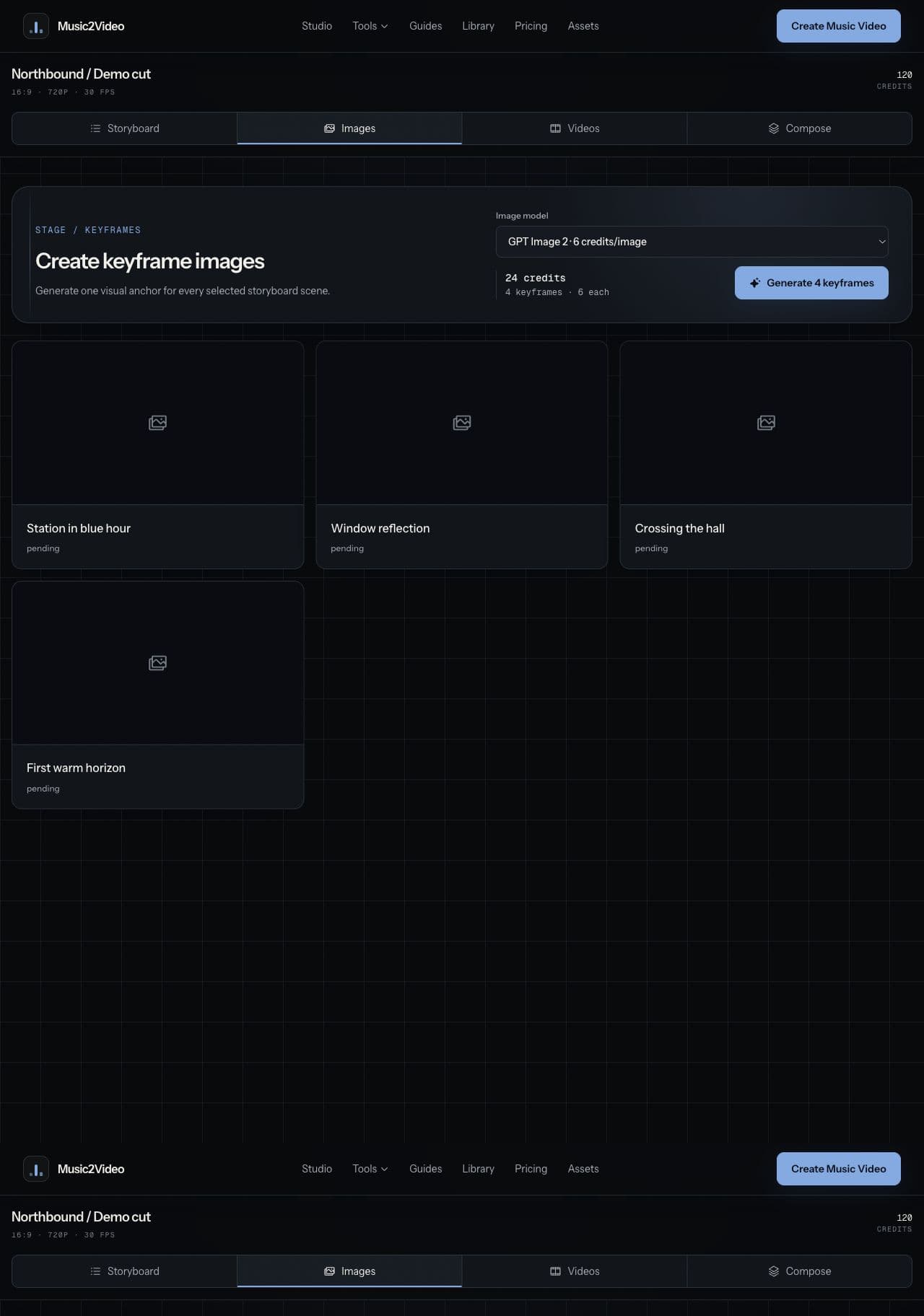
Generate keyframes
Create one visual anchor for each selected scene.
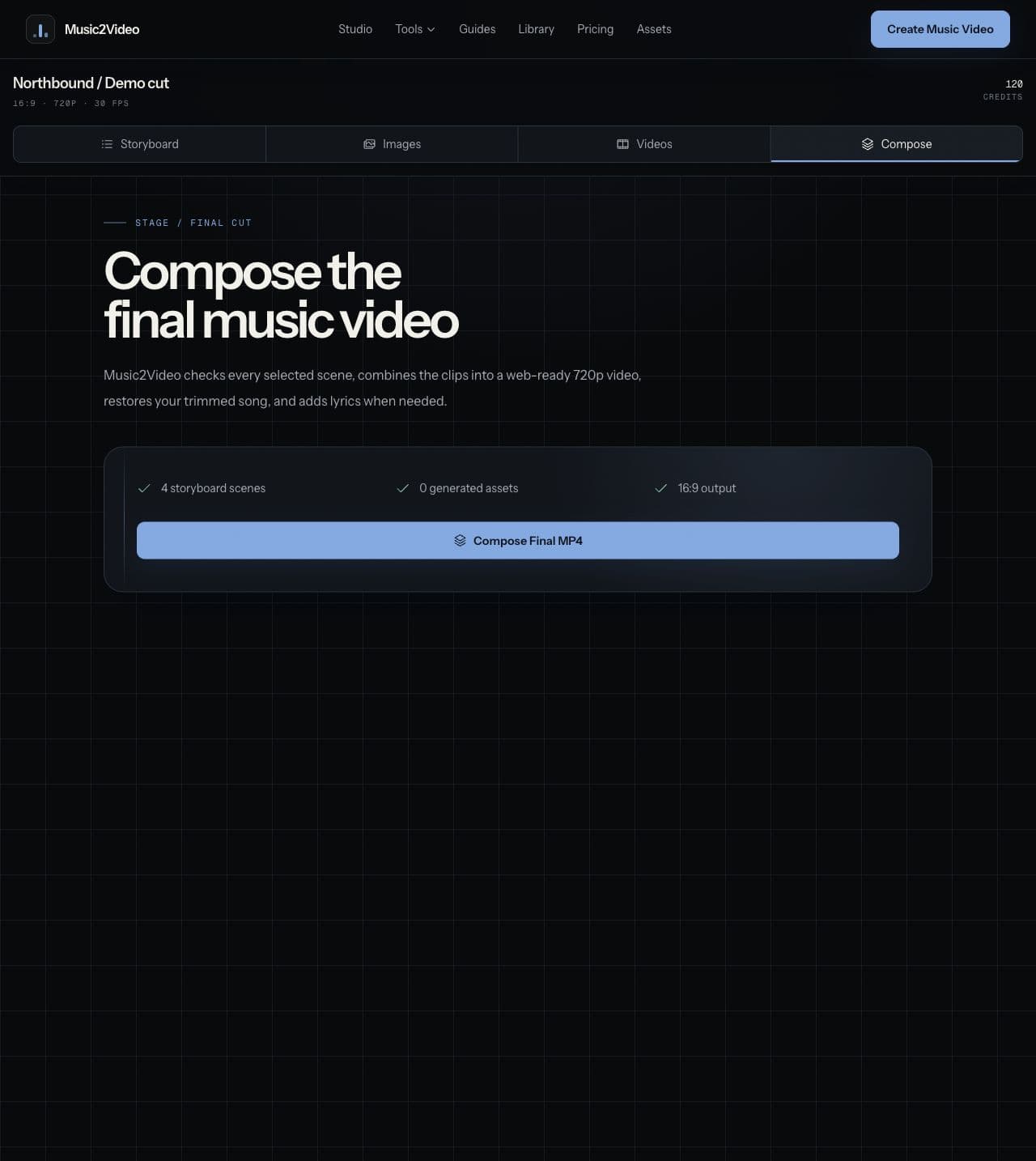
Compose the final MP4
Combine the selected scenes with the original track.
Watch finished videos made from complete songs
Watch three finished Music2Video examples and see how a song can become a directed visual world. These are showcase examples, not customer testimonials or claimed commercial results.
A complete-song visual poem that moves from moonlit grassland and animal silhouettes toward a warmer horizon.
View caseA full-length character study built from red and black contrast, close faces, mirrored images, and controlled geometric space.
View caseA full-length cinematic example that uses desaturated ruins, a recurring pale-haired figure, fractured surfaces, and an underwater ending.
View casePlan the format before you generate
| Workflow type | Editable scene workflow | One-click or text-first workflow |
|---|---|---|
| Editable scene workflow | Storyboard, timing, lyrics, prompts, order, and scene selection remain editable. | A preset or prompt produces a finished clip with fewer scene-level controls. |
| Audio-first workflow | Upload or import a track, trim it, then map scenes to the selected range. | A text-first workflow starts with a prompt; music timing is added separately. |
| Stage-based workflow | Review the storyboard, create keyframes, generate clips, and compose the final MP4. | A single-pass workflow generates one result, then uses the options exposed by that tool for refinement. |
Music2Video accepts MP3, WAV, M4A, AAC, and OGG up to 100 MB. You can plan the full track or any trimmed section you need.
You must have permission to use the music, lyrics, performer likeness, and reference materials you submit. Music2Video does not grant rights to third-party content.
Choose a compatible Seedance model and keep each vocal scene to 15 seconds or less. The finished video uses your original song.
Yes. Paste lyrics or upload TXT or LRC. LRC timing is preserved, and all lyrics remain editable before export.
Planning is usually quick. Image and video generation time depends on the number of scenes, current demand, and retries. The Studio saves your progress when you refresh.
Planning costs one credit per project. Images cost four or six credits each. Video is charged per output second at the selected model rate. Failed or cancelled tasks return their credits.
Your original songs, performer photos, and references stay private. Generated media may use a shareable media link so you can preview or download it.
Grok Imagine Video, Seedance 2.0 Fast, and Seedance 2.0 are available. Grok is disabled when lip sync is enabled.
Build the storyboard, direct each scene, and export the finished cut.