AI Lyrics Video Maker: Get Words and Timing Right
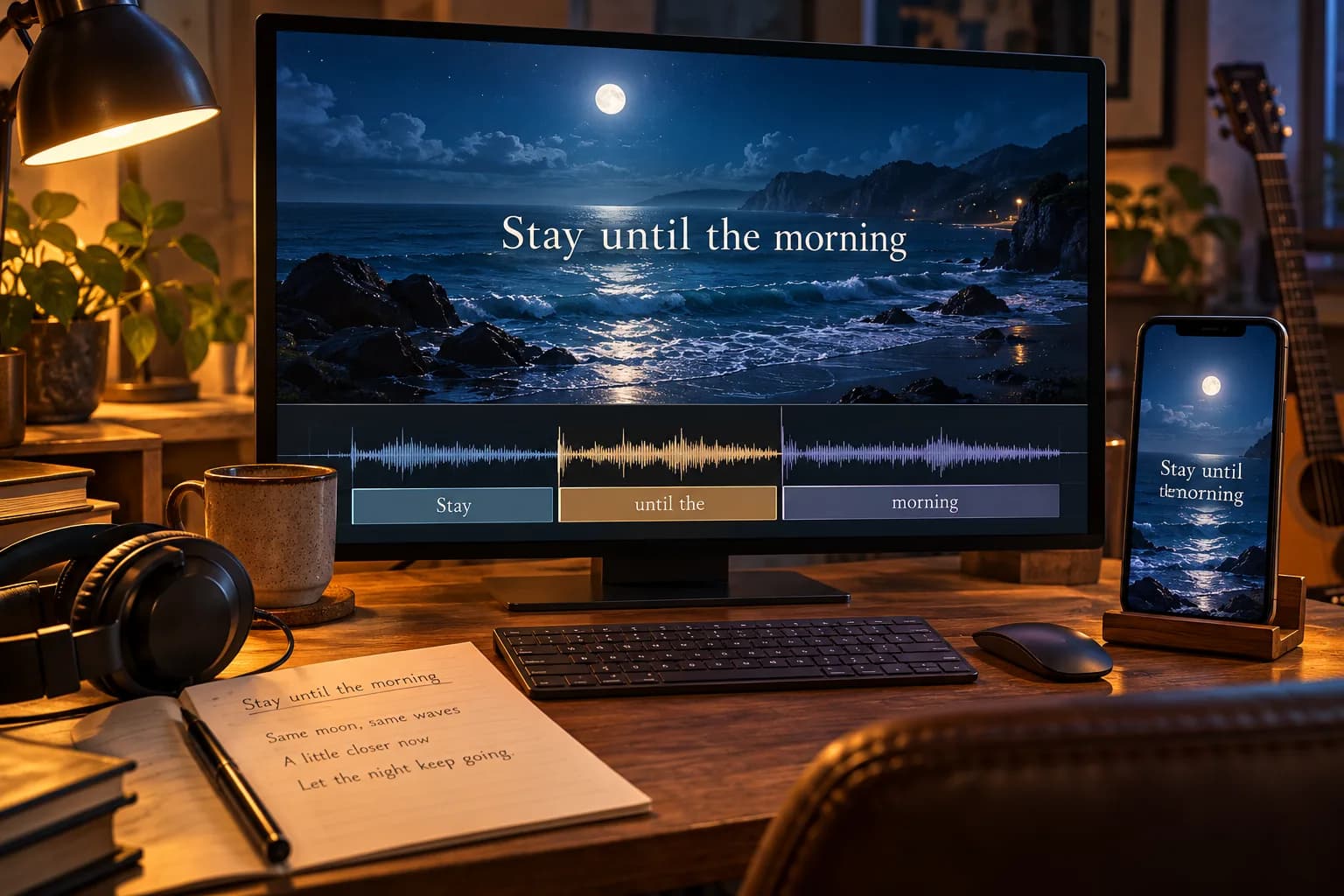
An AI lyrics video maker pairs song audio with timed text. Learn to correct lyric timing, choose readable layouts, and check your video before publishing.
A beautiful background cannot rescue a chorus whose words arrive late. For independent artists preparing a lyric release, the useful test is whether a new listener can read the words while hearing the same phrase.
What is an AI lyrics video maker?
An AI lyrics video maker combines audio, timed lyric text, and visual backgrounds into a video. Depending on the tool, AI may transcribe vocals, suggest timing, or generate imagery. These are separate capabilities. Check which steps are automated and whether you can correct words and timestamps before export.
A lyric video displays the sung words. A narrative video interprets their meaning through scenes. This guide focuses on the text layer: accuracy, phrase timing, and readability.
Choose lyric input before generating visuals
Use the final recording and an approved lyric sheet. Copy repeated choruses in full, preserve intentional spelling, and remove section labels that should not appear on screen. A demo and a released mix can have different introductions or vocal entrances.
Plain text supplies words without timing. A basic LRC file adds line timestamps, while transcription attempts to recover words from audio. Kapwing's lyric video documentation describes manual text and automatic subtitles as alternatives. Treat any generated transcript as a draft, especially where backing vocals overlap.
Keep lyrics as editable text over the background. Asking an image model to draw complete verses makes spelling corrections and later timing changes difficult.
Fix lyric timing with a three-point check
Check the first vocal phrase, a middle chorus, and the final sung line. If every cue is equally late, investigate an offset. If the error grows, compare the recording versions and duration before moving each line independently.
For an illustrative cue, suppose “Stay until the morning” begins at 00:42.00 and the next phrase starts at 00:45.20. Show that line near its vocal entrance, then remove or replace it at the phrase boundary. Those numbers describe this example, not a universal reading speed.
Listen through instrumental gaps too. A timestamp marks a start, but the previous lyric should not necessarily remain visible until the next verse. Give rests deliberate text-free space.
Make lyric text readable on a phone
Split long sentences at natural phrase boundaries. Prefer one or two short lines over a paragraph. Hold placement steady so viewers can follow the words without searching around the frame.
Test the busiest background frame, not just the calm opening. An outline or shaded panel can preserve contrast when light moves behind white letters. Leave room for platform controls, and review horizontal and vertical crops separately.
Use line-level timing for a straightforward lyric release. Word-by-word karaoke needs finer timestamps and compatible rendering. Confirm that capability before choosing a maker; an animated background does not imply karaoke support.
Apply the checks in Music2Video
Start with AI Music Video and choose Lyrics Video in Studio. Add the final audio, then paste lyrics or upload TXT or LRC. Music2Video accepts supplied text; it does not automatically transcribe the uploaded song.
Review the storyboard's editable text and scene timing before generating backgrounds. Plain lyrics need manual timing review. The lyric video workflow guide explains input preparation and composition.
Export a short chorus first. Watch once with headphones for alignment, then muted on a phone for readability. Check the downloaded file for missing characters and clipped lines. YouTube's upload guidance recommends MP4 with H.264 video and 48 kHz audio.
AI lyrics video maker FAQ
Can an AI lyrics video maker transcribe singing accurately?
Some tools offer transcription, but review every line against the recording. Music2Video requires supplied lyrics rather than automatic audio transcription.
Does LRC provide word-by-word karaoke highlighting?
A basic LRC file marks line starts. Word highlighting needs additional timing data and a renderer that supports it; line timestamps alone are insufficient.
Why do lyrics drift out of sync later in the song?
Check whether the timestamps match the exact recording. A different intro, tempo, or edit can shift later lines. Correct the source mismatch before adjusting individual cues.
Start your review with the chorus that has the fastest or densest vocal phrase.
Diagnose the source before moving every cue
| What you hear | Check first | Smallest useful correction |
|---|---|---|
| Every line is late by the same interval | Added intro or trim offset | Align the first cue, then check a middle and final cue. |
| Later lines drift further from the voice | Different recording or edited verse | Use timestamps for this exact audio version. |
| One chorus line is wrong | Repeated chorus or backing vocal | Correct that line and its neighboring boundary. |
| Text disappears into the image | Bright moving background | Change placement or contrast and preview the busiest frame. |
Keep a copy of the original lyric sheet before changing timestamps. For scene concepts rather than text timing, see turning lyrics into visual prompts. To prepare the audio trim that those timestamps must follow, use the song-to-video workflow.
For a first finished clip, follow the chorus-first AI lyric video workflow in Studio.
Keep reading
Related articles
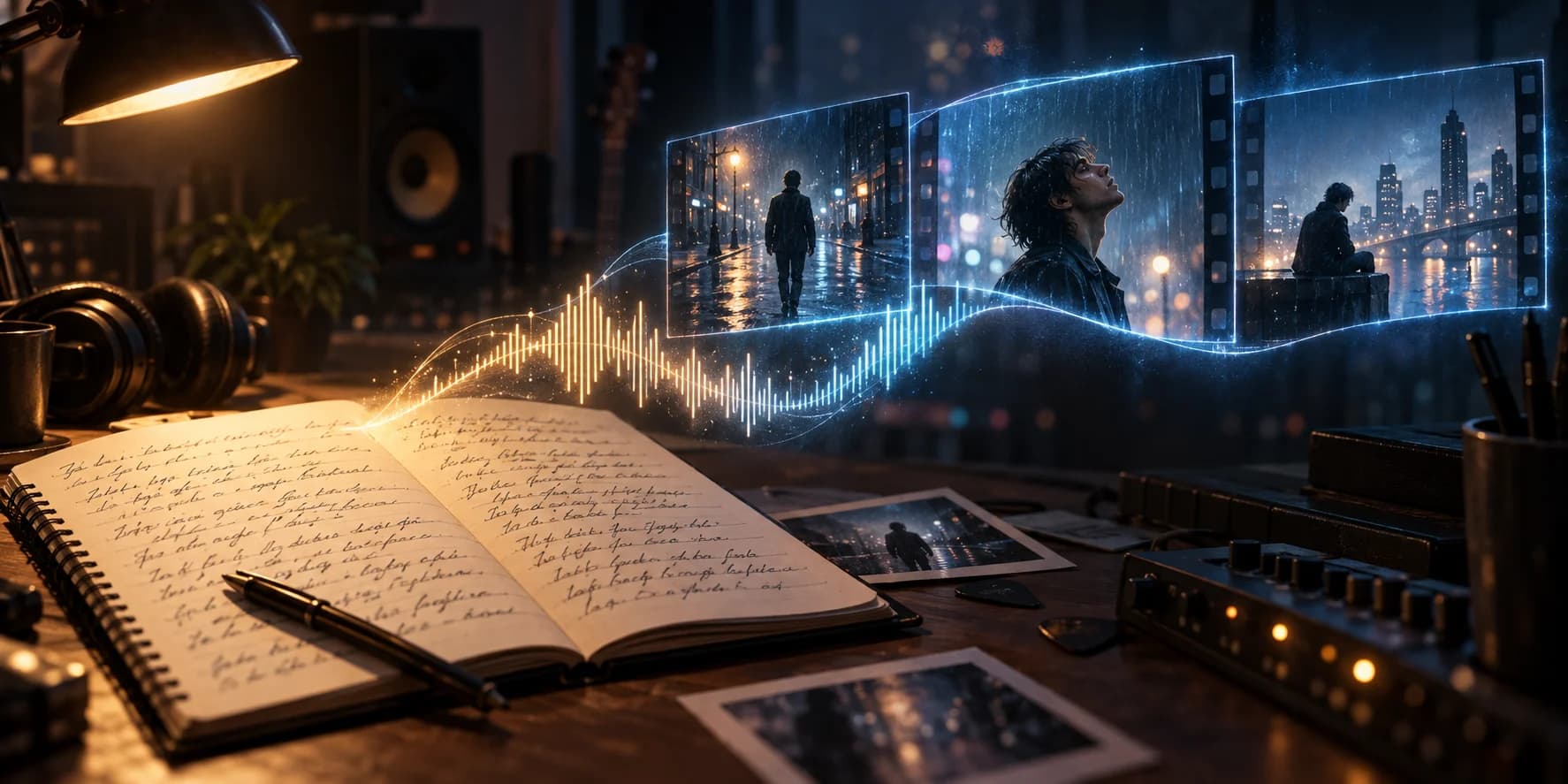
AI Music Video Generator from Lyrics: A Practical Guide
An AI music video generator from lyrics turns song words into visual ideas. Learn to plan scenes, add audio timing, and create a readable lyric video.
Read article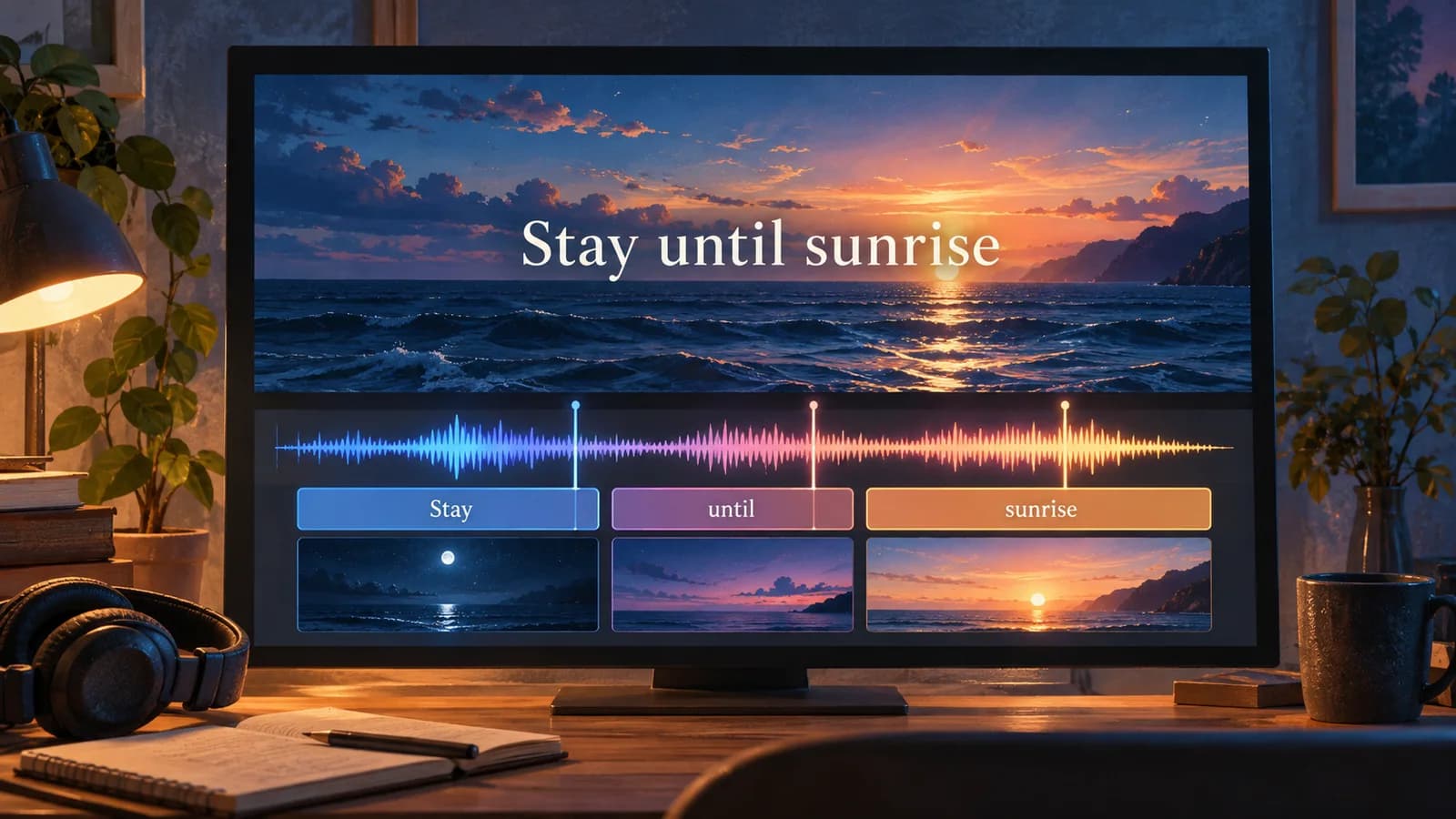
Make Lyrics Video AI: Build Your First Chorus
Make lyrics video AI projects with a chorus-first workflow. Prepare words, generate backgrounds, and export a readable lyric video in Music2Video Studio.
Read article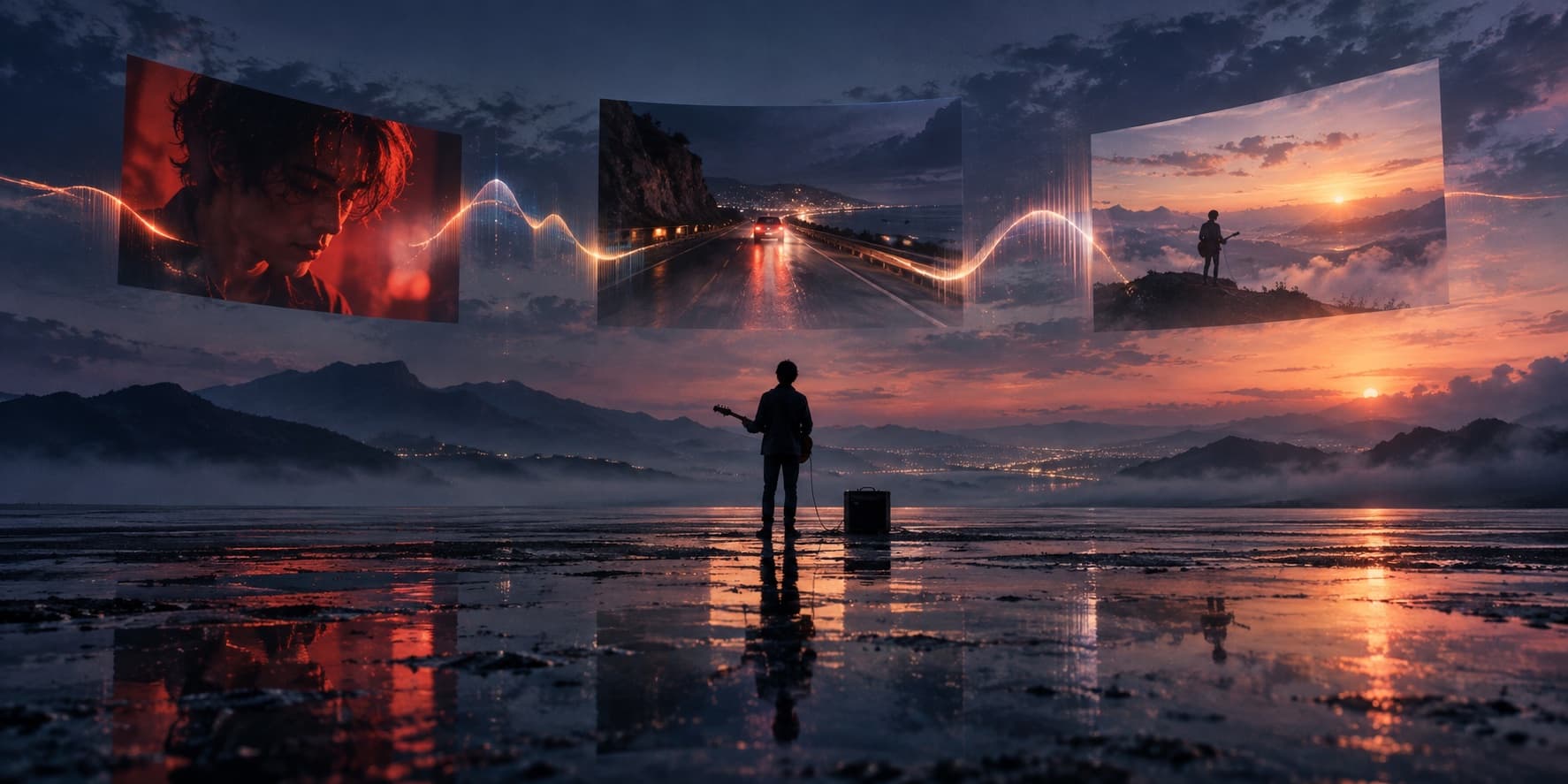
AI Video Generator for Music Videos: A Sync Guide
An AI video generator for music videos should follow a song’s structure, not just add random clips. This guide shows how to plan and review the result.
Read articleMake something
Recommended tools
Explore the workflow