Make Lyrics Video AI: Build Your First Chorus
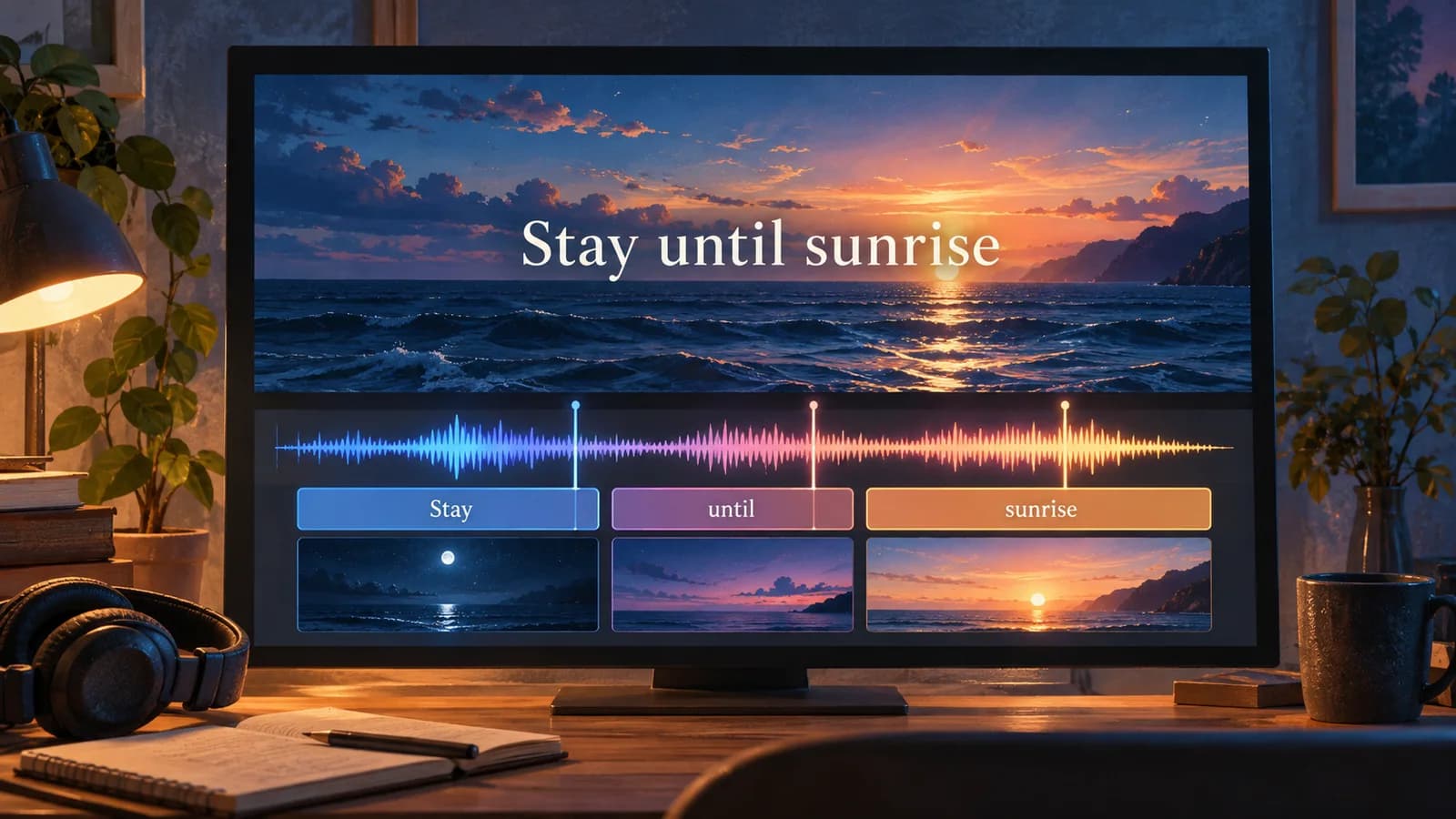
Make lyrics video AI projects with a chorus-first workflow. Prepare words, generate backgrounds, and export a readable lyric video in Music2Video Studio.
A chorus gives independent musicians a useful first deliverable: a short video that introduces the hook and lets listeners follow the words. Finish that section before committing to a full song. You can check the visual direction and text density while the project is still small enough to revise.
What does it mean to make a lyric video with AI?
An AI lyric video combines a recording, supplied or transcribed lyrics, and generated visual material. The words appear at planned times over backgrounds or moving scenes. Automation varies by tool: generating imagery, identifying sung words, and synchronizing text are separate tasks. Check which parts your chosen tool actually handles.
Start by deciding what viewers should notice. For a lyric release, the words need the clearest space in the frame. A detailed character scene may suit a narrative music video, but a crowded background can compete with a fast chorus.
Keep the text separate from generated artwork. If an image model draws your lyrics into a background, correcting a misspelled word requires replacing the image. A text overlay lets you change the words while keeping an approved visual.
Prepare one chorus before generating backgrounds
Choose the final recording and identify a self-contained section. A 20- to 30-second chorus is a planning example, not a required duration. Include enough of the opening phrase that the first word has context. Avoid cutting off a held note at the end.
Prepare a lyric sheet that matches this recording. Write repeated phrases in full, check ad-libs, and remove notes that should stay off screen. Divide dense sentences into short phrases. Read each phrase while listening; if you cannot finish it comfortably, simplify the line break before adding visual effects.
Choose the frame shape early. A vertical composition needs different empty space from a horizontal one. Sketch where the text will sit, then describe a background that leaves that area clear. Moving lights or bright water can hide white letters even when the opening frame looks readable.
Give AI backgrounds a repeatable visual direction
Use one setting and a small set of visual details across the chorus. For an invented lyric, “Stay until sunrise,” you might describe a dark ocean, a warm horizon, and slow movement. Leave the lower part of the frame calm for text.
Specify what should change between scenes. One shot can face the horizon; the next can show the same water closer. Repeating the setting gives the chorus continuity. Introducing a different landscape for every line creates more visual decisions to review.
Approve still frames together before generating motion. Check the palette, composition, and space for words. Fixing a background at this stage avoids spending generation credits on a clip you already know needs replacing.
Make lyrics video AI projects in Music2Video Studio
Use the make lyrics video ai workflow by choosing Lyrics Video in Studio. The site also offers Performance MV and Cinematic MV for other kinds of releases. The AI music video generator homepage explains the broader song-to-video workflow.
- Add the recording and lyrics. Upload audio or import a direct HTTPS audio-file URL. Trim the song, then paste your lyrics or upload TXT or LRC. Music2Video requires supplied lyrics and preserves LRC timestamps.
- Set the visual direction. Add optional reference images, choose an art style, and describe the setting, lighting, and movement. Select 16:9, 9:16, or 1:1. Lip sync is disabled for Lyrics Video.
- Review the moodboard and storyboard. Check scene timing, display text, and prompts before generation. Plain text needs timing review; an LRC file also needs checking against your selected recording.
- Generate images, then clips. Inspect the keyframes before generating motion. Review the displayed credit estimates and regenerate only material that needs a correction.
- Compose and inspect the download. Composition combines the clips, restores your trimmed song, and adds lyric overlays. Current output is 720p at 30 fps. Listen for alignment and watch on a phone for clipped or crowded lines.
If the words drift, use the lyric timing checks before replacing backgrounds. Check the first phrase and final line against the same audio edit.
Questions about making AI lyric videos
Can I make a lyric video with AI from audio alone?
In Music2Video, you must also supply lyrics. Paste the words or upload TXT or LRC. The Studio does not automatically transcribe vocals from your recording.
Do I need timestamped lyrics before opening Studio?
No. Plain text works as a starting point. LRC supplies line timestamps, but you still need to review the storyboard against the exact audio section you selected.
Can Music2Video create vertical lyric videos?
Yes. Studio offers 9:16, 16:9, and 1:1 formats. Choose the intended format before generating backgrounds, then check text placement in the final export.
Open Studio with your final recording and the lyric sheet for one chorus.
Keep reading
Related articles
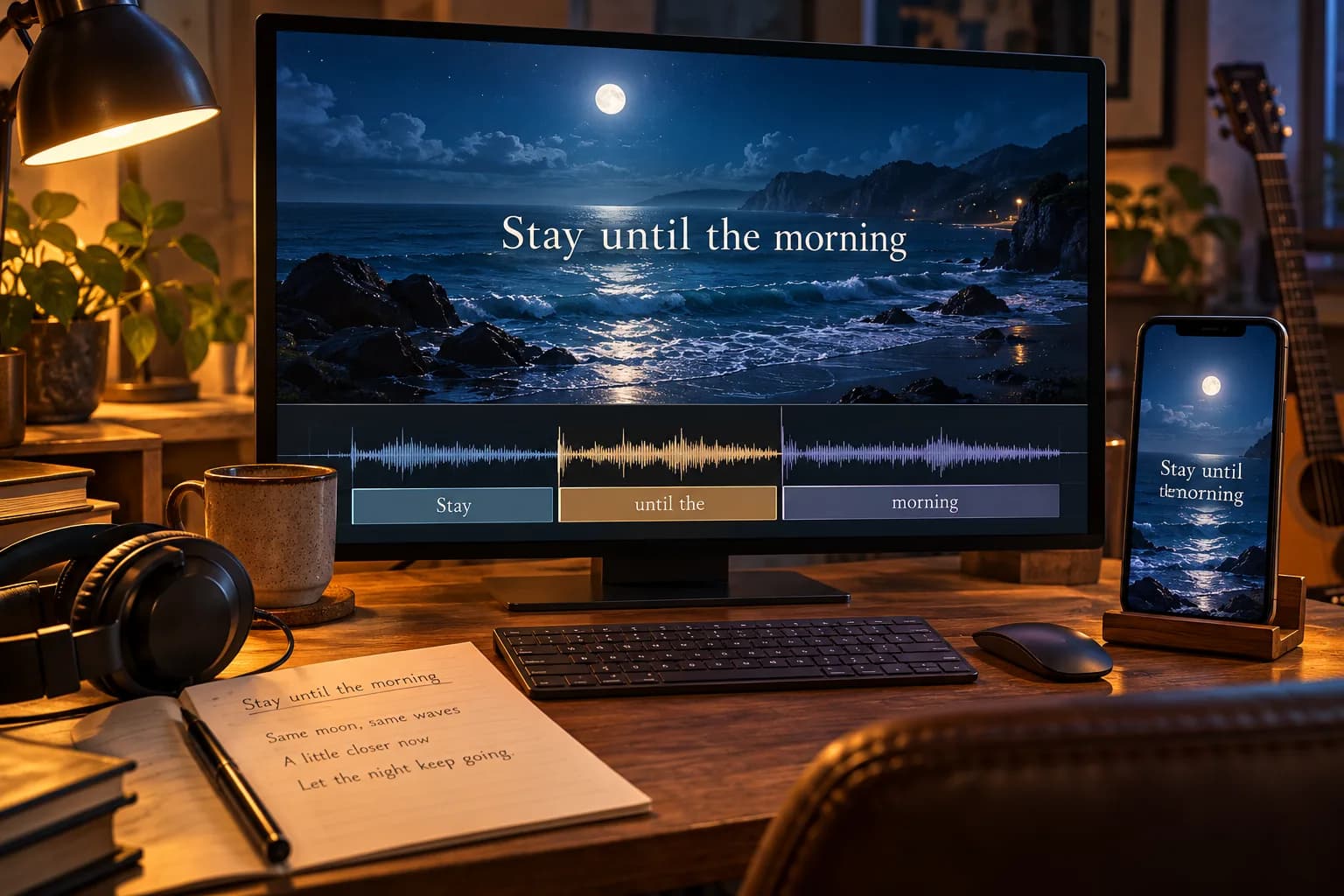
AI Lyrics Video Maker: Get Words and Timing Right
An AI lyrics video maker pairs song audio with timed text. Learn to correct lyric timing, choose readable layouts, and check your video before publishing.
Read article
AI Music Video Generator from Lyrics: A Practical Guide
An AI music video generator from lyrics turns song words into visual ideas. Learn to plan scenes, add audio timing, and create a readable lyric video.
Read article
How to Make AI Music Videos
Making an AI music video is easier when the song stays in charge. The best AI music video generator workflow maps musical structure to short, editable…
Read articleMake something
Recommended tools
Explore the workflow